This article outlines the prerequisites for configuring Data Lake Sync with Infor LN Cloud. It should be used in conjunction with Infor’s official documentation:
Documentation: Infor LN Analytics for Birst with Compass Administration Guide
Knowledge Base: KB2026400 - Infor LN Analytics for Birst - Master KB Article
Note: This article assumes you are using Data Lake Ingestion (not IMS / Infor Messaging Service). At the time of writing, the Infor Gov Cloud does not support Data Lake Ingestion.
Core Requirement
The prerequisite for using Data Lake Sync is that Infor LN must be publishing data into the Infor Data Lake.
The following steps outline how to validate and set up LN for Data Lake publishing.
- Confirm the existing set up in Infor LN
- Login to LN and navigate to Tools > Integration Tools > Data Publishing Management > Data Sets to Publish
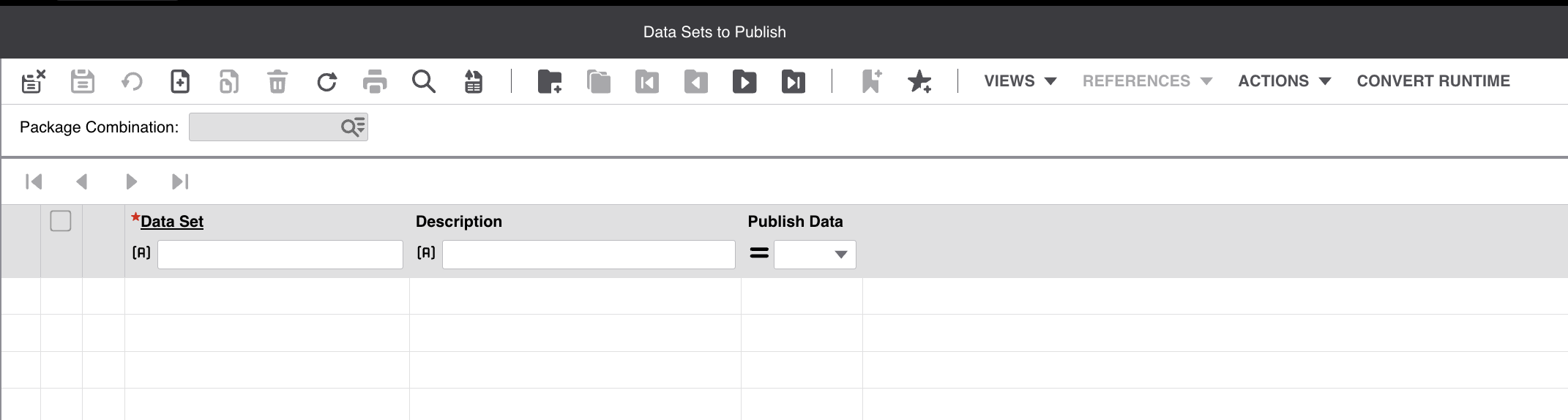
- Depending on the set up, there may be existing Data Sets defined in this screen.
- Login to LN and navigate to Tools > Integration Tools > Data Publishing Management > Data Sets to Publish
- Set up Data Sets to add tables to the Infor Data Lake
- If you're unsure on the tables required, a good set of base tables to use is the core set of tables that are used for LN Analytics. Use Infor KB article KB2026400 to download the latest XML file and follow the LN Analytics for Birst with Compass Administration Guide.
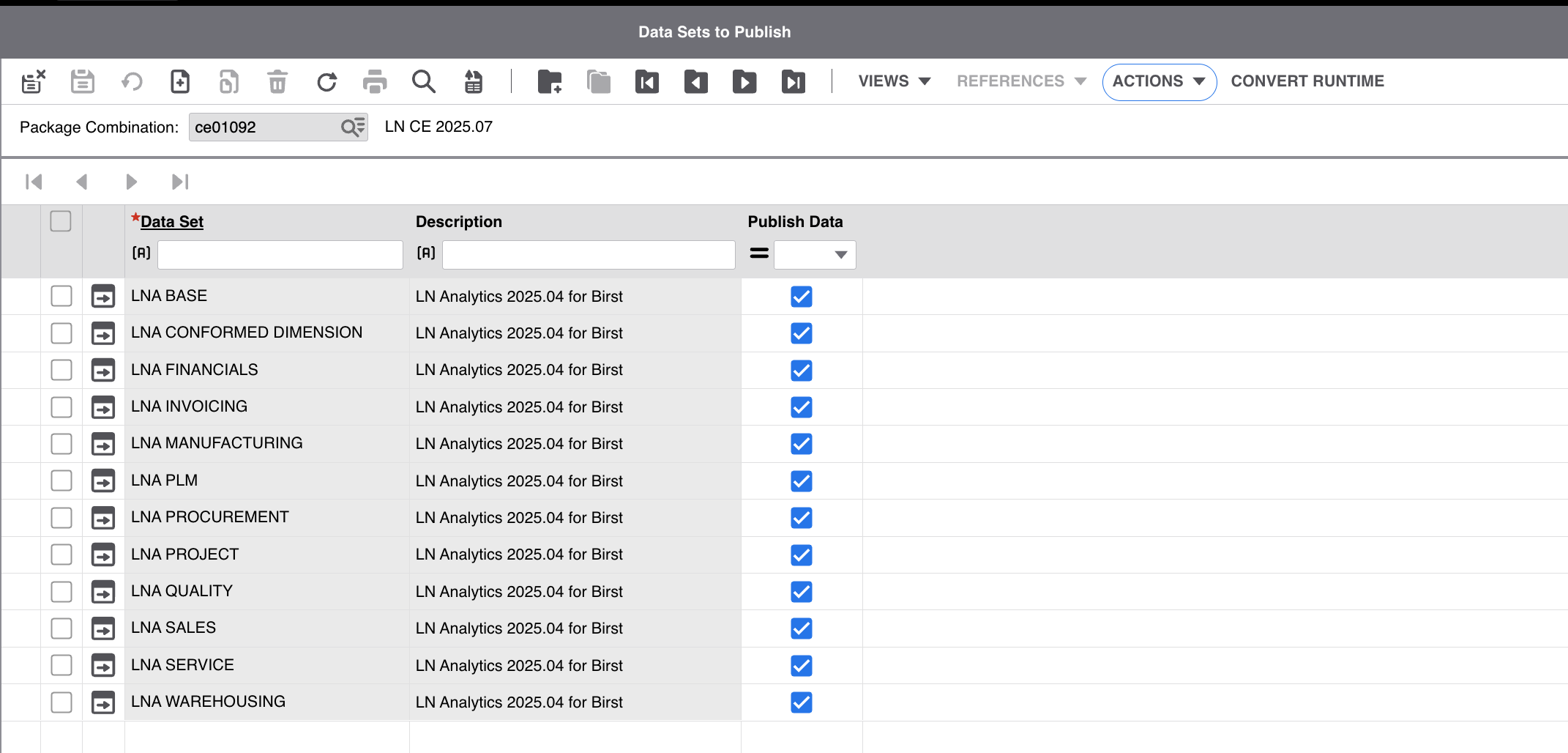
- If you know the tables you want to publish or want to publish additional tables to the LN Analytics table list, you can create a new custom Data Set, define the tables you require, ensure companies are selected and the data set is active.
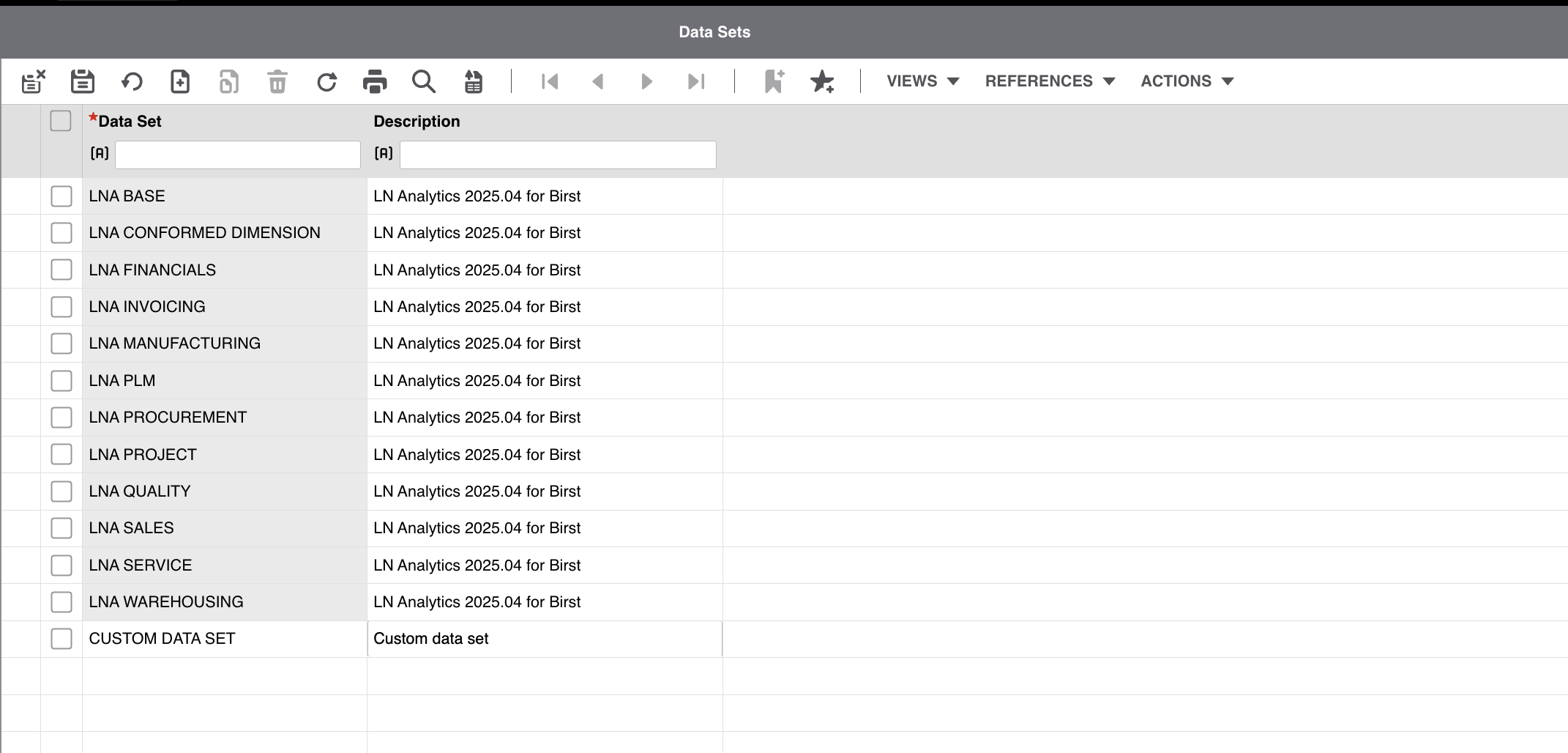
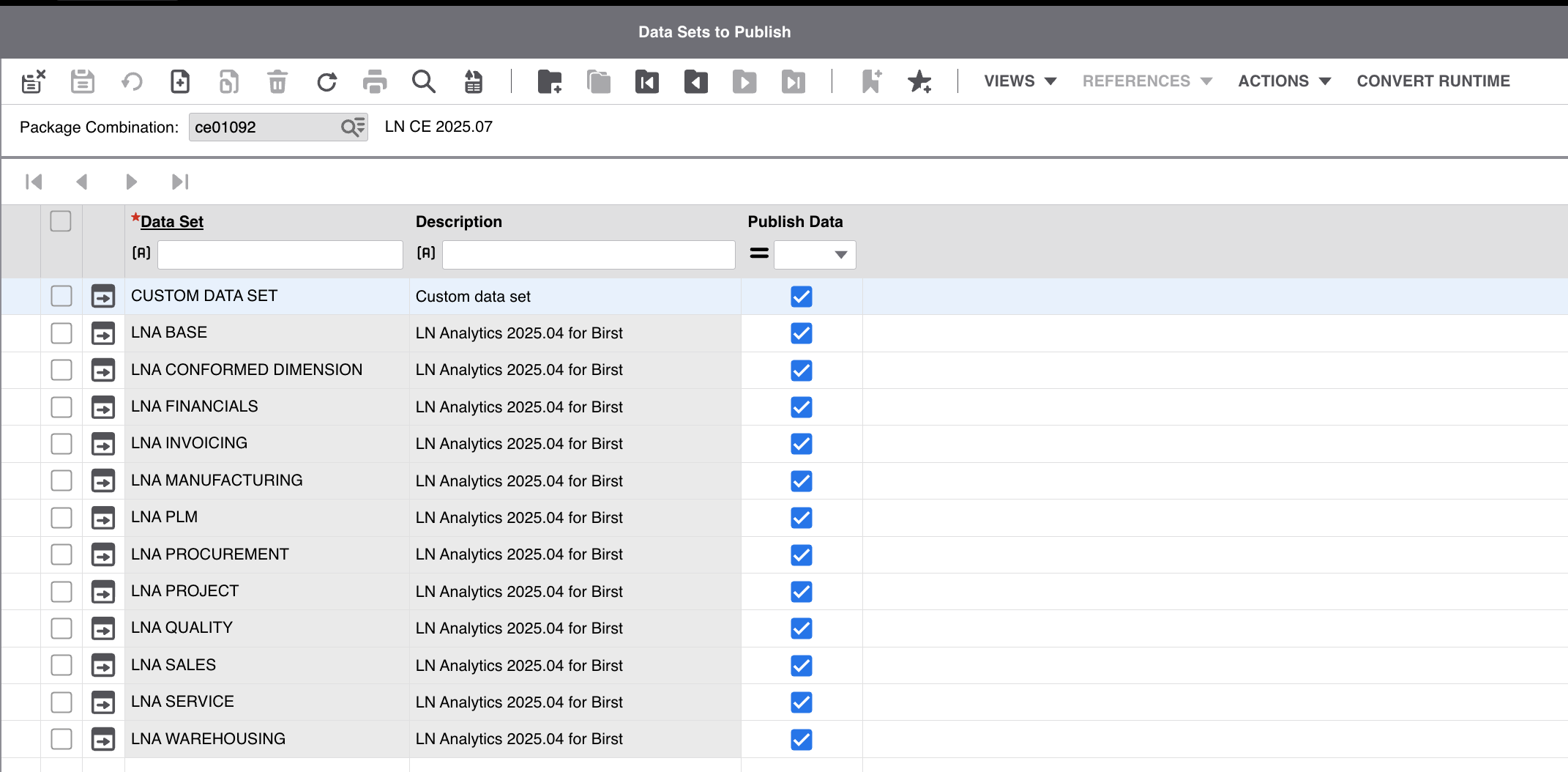
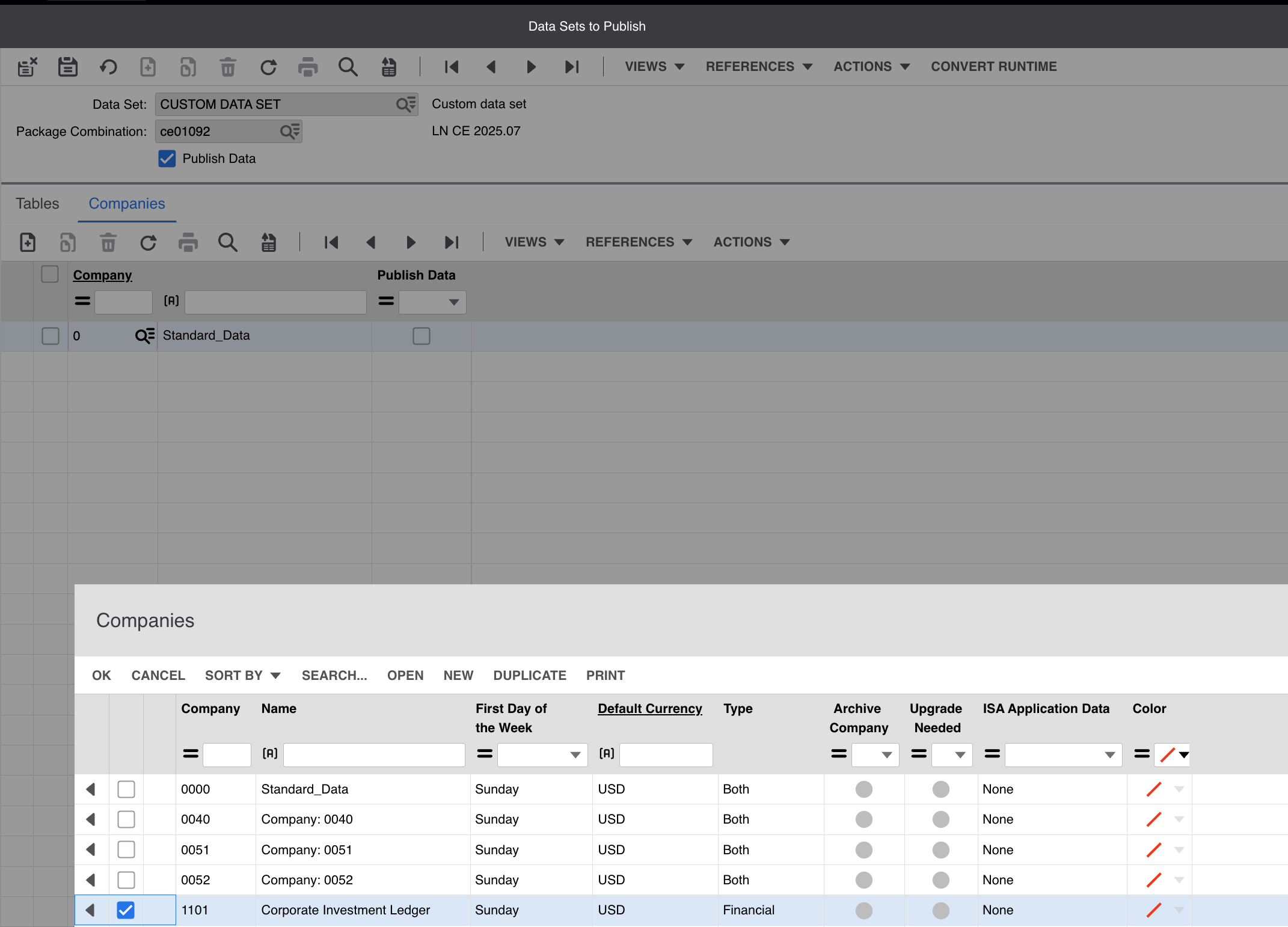
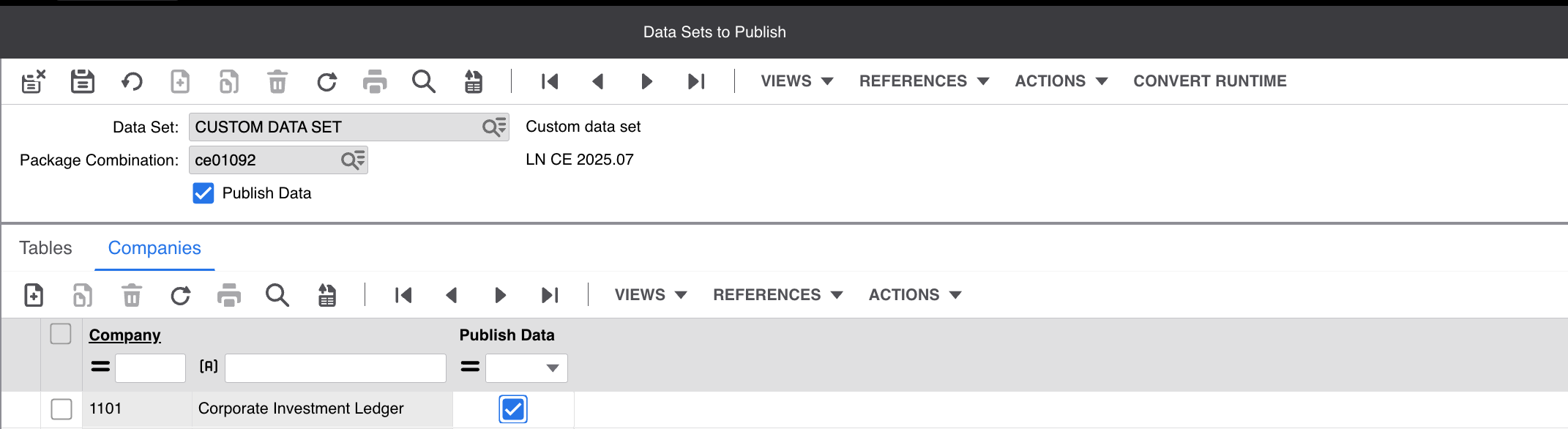
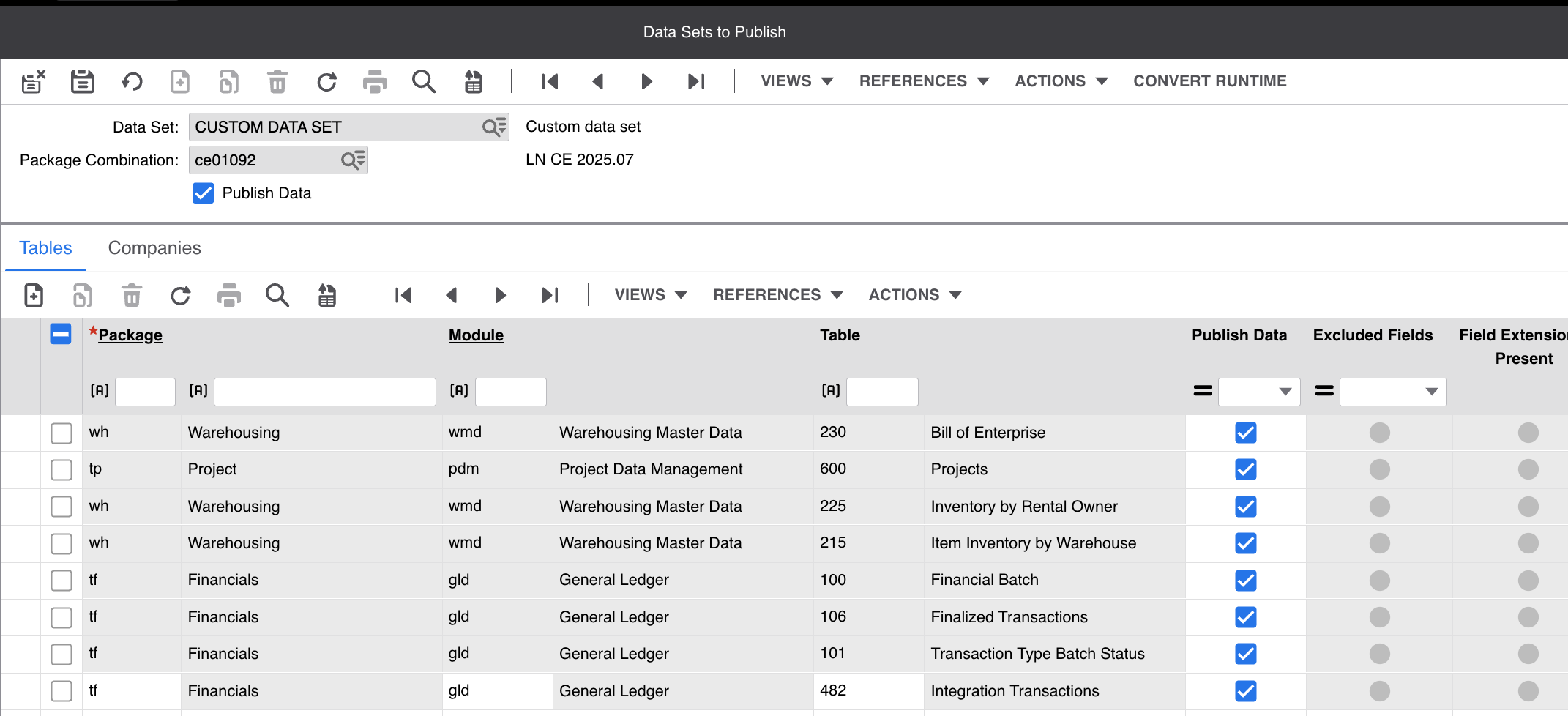
- Once the Data Set setup is complete, ensure Convert Runtime is pressed

- Go to Tools > Integration Tools > Data Publishing Management > Publish Data
- Press Republish Meta Data from the top menu. This will create the ION Data Catalog entries
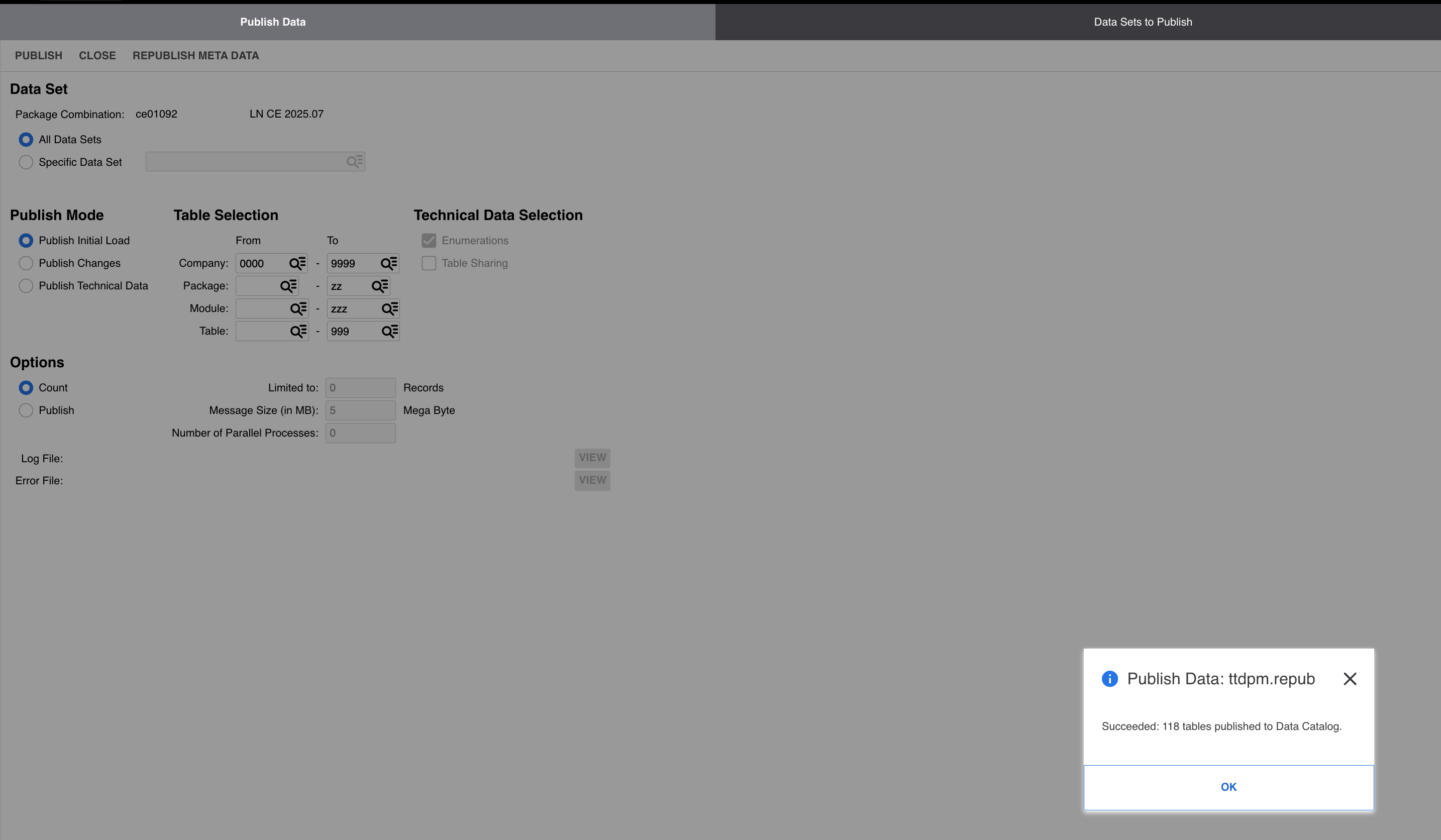
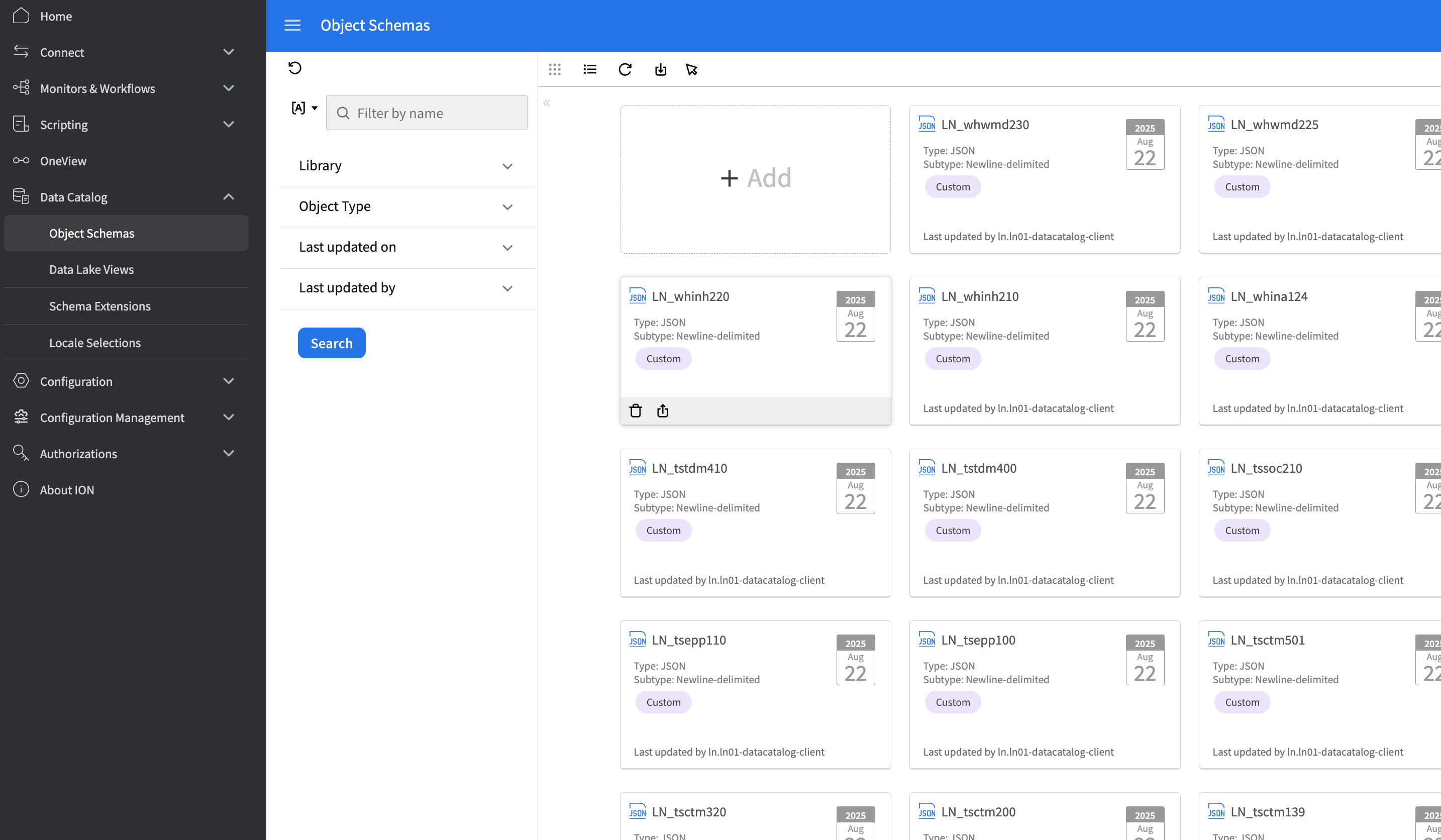
- Validate tables are now available in the ION Data Catalog. Go to the OS application in the Infor Portal > ION > Data Catalog > Object Schemas
- If you're unsure on the tables required, a good set of base tables to use is the core set of tables that are used for LN Analytics. Use Infor KB article KB2026400 to download the latest XML file and follow the LN Analytics for Birst with Compass Administration Guide.
- Send data from Infor LN to the Infor Data Lake and validate
- Back in LN, go to Tools > Integration Tools > Data Publishing Management > Publish Data. Publish the Initial Load as follows: (Note: This process can take some time depending on data volume)
WARNING: Care should be taken with this step. Publishing large data volumes from LN to Infor Data Lake can cause significant and unnecessary delays in Data Lake Sync schedules.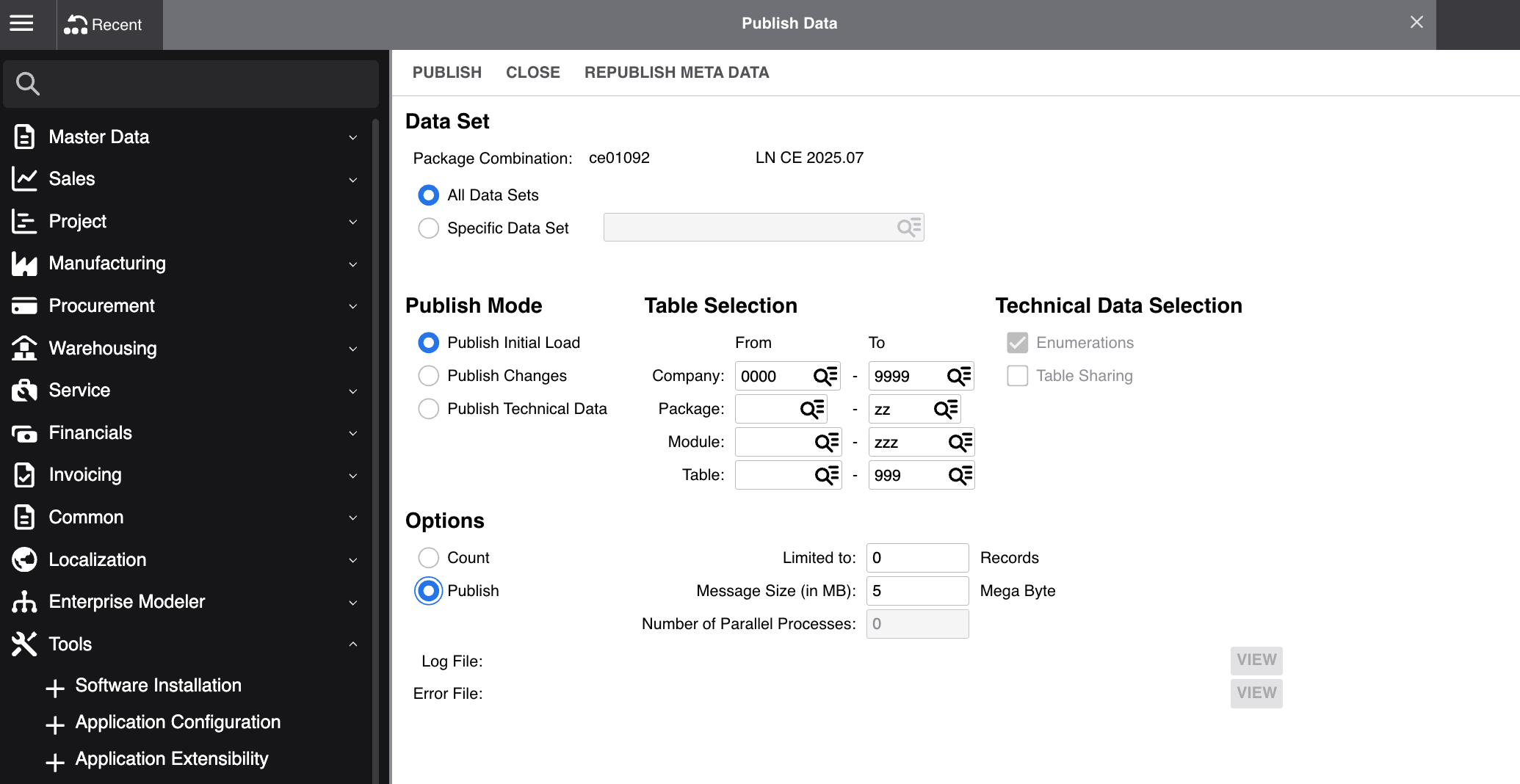
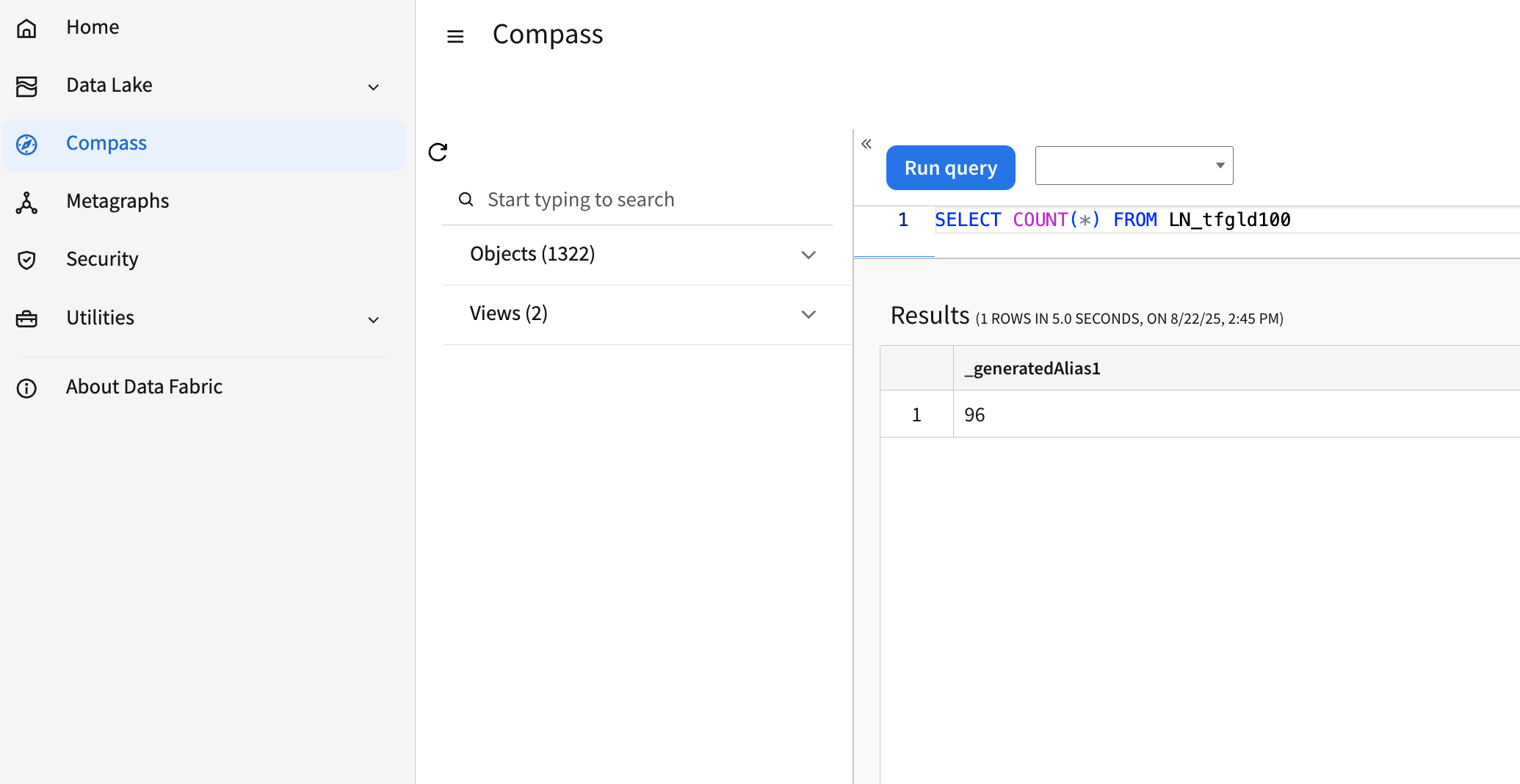
- Go back to the OS application in the Infor Portal. Navigate to Data Fabric > Compass. Run a query on a table to ensure data has been populated
- Back in LN, go to Tools > Integration Tools > Data Publishing Management > Publish Data. Publish the Initial Load as follows: (Note: This process can take some time depending on data volume)
Was this article helpful?
That’s Great!
Thank you for your feedback
Sorry! We couldn't be helpful
Thank you for your feedback
Feedback sent
We appreciate your effort and will try to fix the article