This guide outlines the required pre-requisites to successfully provision AskQ. Completing these steps ensures that AskQ has access to the data it needs to deliver accurate and meaningful insights.
1. Infor Data Lake Integration
The primary pre-requisite for AskQ is that relevant data from CSI / SyteLine is fully integrated into the Infor Data Lake.
AskQ operates directly on this data, so completeness and accuracy are critical.
Required Tables
The following tables must be present in the Infor Data Lake and contain up-to-date data from CSI / SyteLine:
- csi_arparms_mst
- csi_artran_mst
- csi_currate_mst
- csi_custaddr_mst
- csi_employee_mst
- csi_inv_hdr_mst
- csi_inv_item_mst
- csi_invparms_mst
- csi_item_mst
- csi_itemloc_mst
- csi_itemwhse_mst
- csi_lot_loc_mst
- csi_slsman_mst
- csi_poitem_mst
- csi_po_mst
- csi_vendaddr_mst
- csi_vendor_mst
Note: This list is accurate at the time of writing and will evolve over time. Contact support for the latest required dataset list.
Important Notes
- These tables are often already available if your environment has been provisioned or used for other integrations.
- However, presence alone is not sufficient—data must be actively flowing and up to date.
2. Validating Data in the Infor Data Lake
To confirm that data is correctly flowing from CSI / SyteLine into the Infor Data Lake:
Step-by-Step
- Log into the Infor Cloud Portal
- Open the Application Picker
- Select OS (Operating Service)
- Within OS, open the ION application
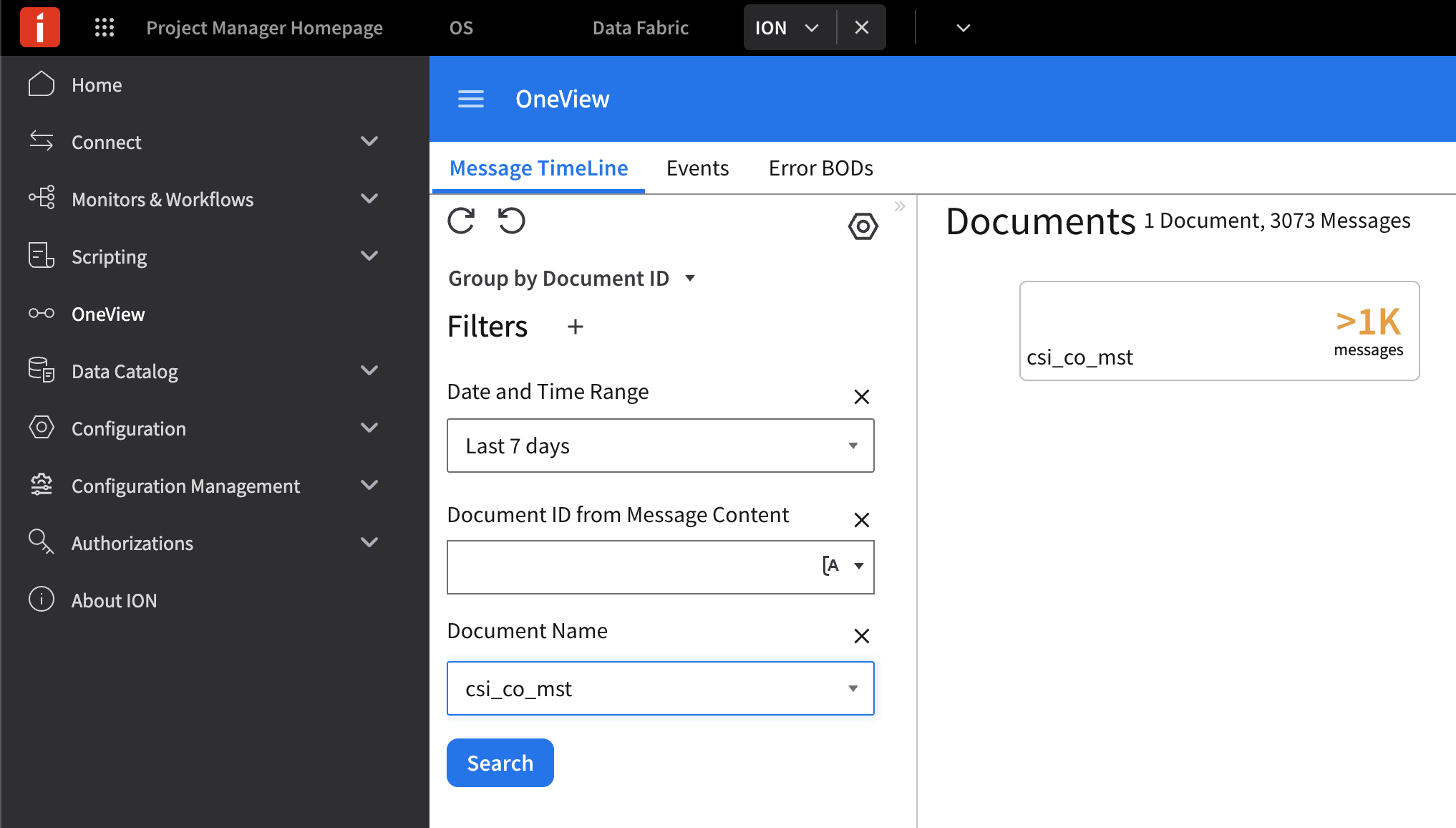
- Navigate to OneView
- Set the time range to “Last 7 days”
- In the Document Name filter enter one or more of the required table names listed above
- Click Search
What to Look For
- You should see boxes for each table indicating successful data transfers
- Missing tables or no recent activity indicate a setup issue that must be resolved before proceeding
Summary
Before implementing AskQ, ensure:
- All required CSI / SyteLine tables are available in the Infor Data Lake
- Data is actively syncing (not just historically loaded)
- Validation has been completed via ION OneView
If any of these conditions are not met, AskQ will not be able to return reliable results and you should move on to Step 3. If the conditions are met, you're ready for AskQ provisioning!
3. Setting Up Infor Data Lake Integration from Infor CSI/Syteline
This section outlines the required configuration steps within Infor CSI / SyteLine to ensure data is replicated to the Infor Data Lake.
Important: This guide supplements official Infor documentation available at https://docs.infor.com.
OrangeQuery, AskQ, and affiliates are not responsible for issues arising from changes made in your environment. Always validate changes in a non-production environment where possible.
3.1 Verify Data Lake Provisioning
Before configuring replication, confirm that the Data Lake components have been provisioned by Infor.
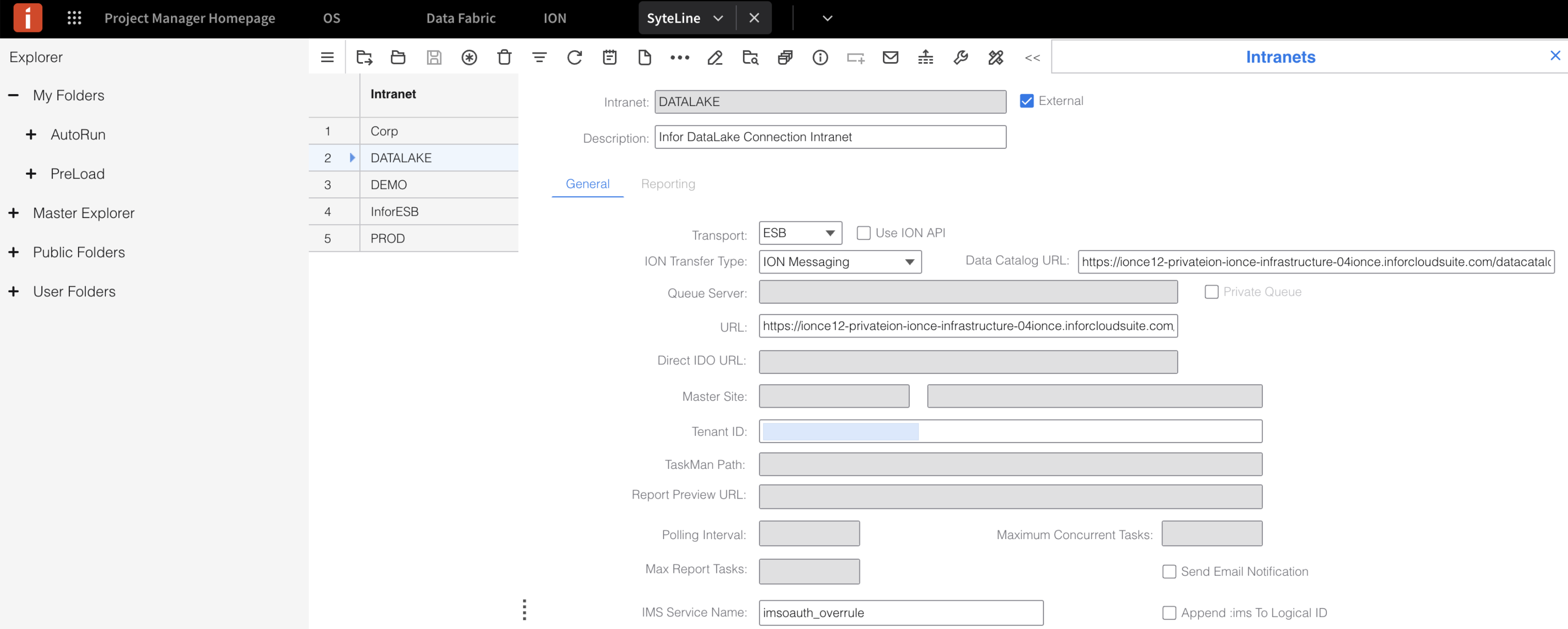
a) Confirm DATALAKE Intranet
• Navigate to the Intranets form
• Verify that an intranet named DATALAKE exists
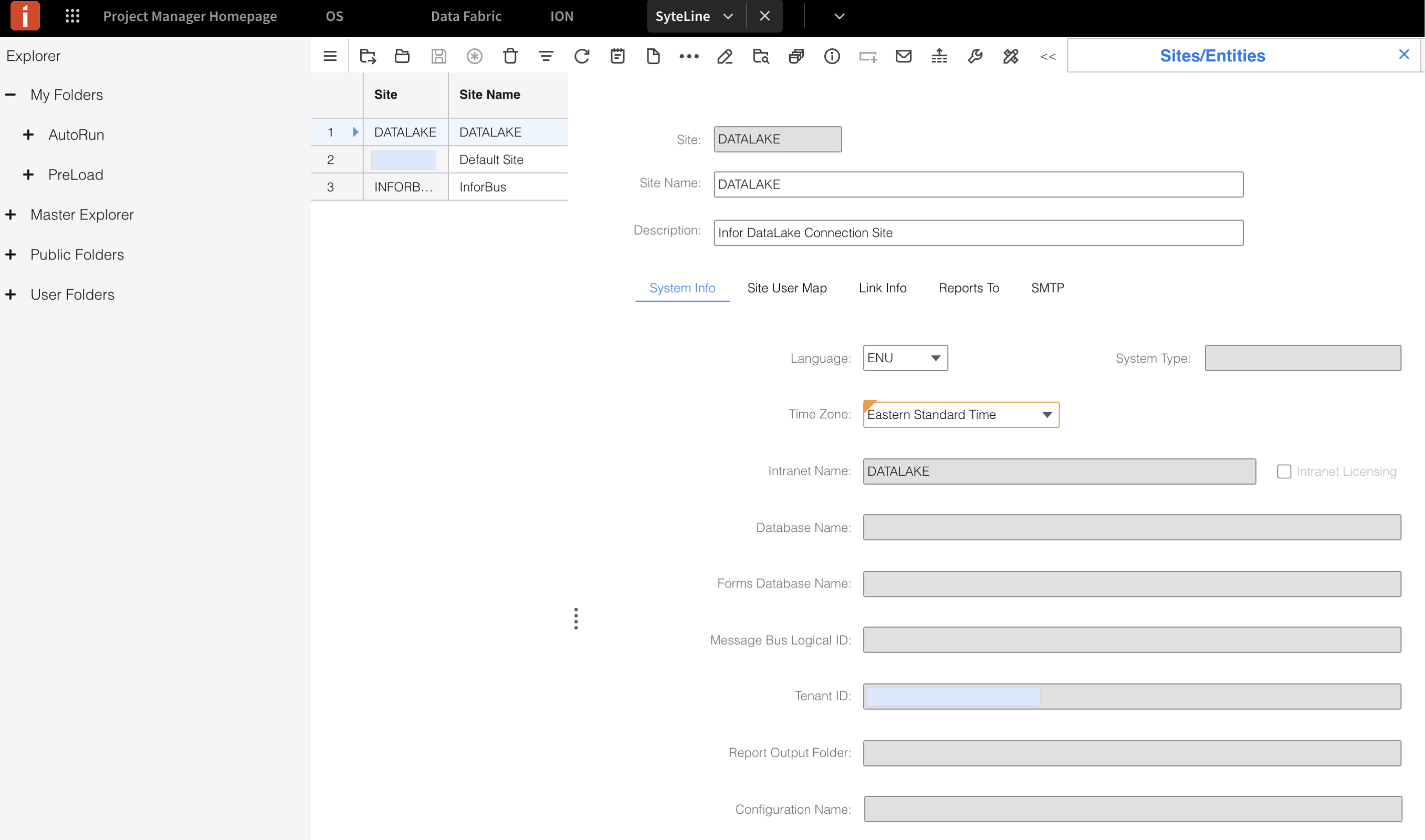
b) Confirm DATALAKE Site
• Navigate to the Sites/Entities form
• Verify that a site named DATALAKE is present
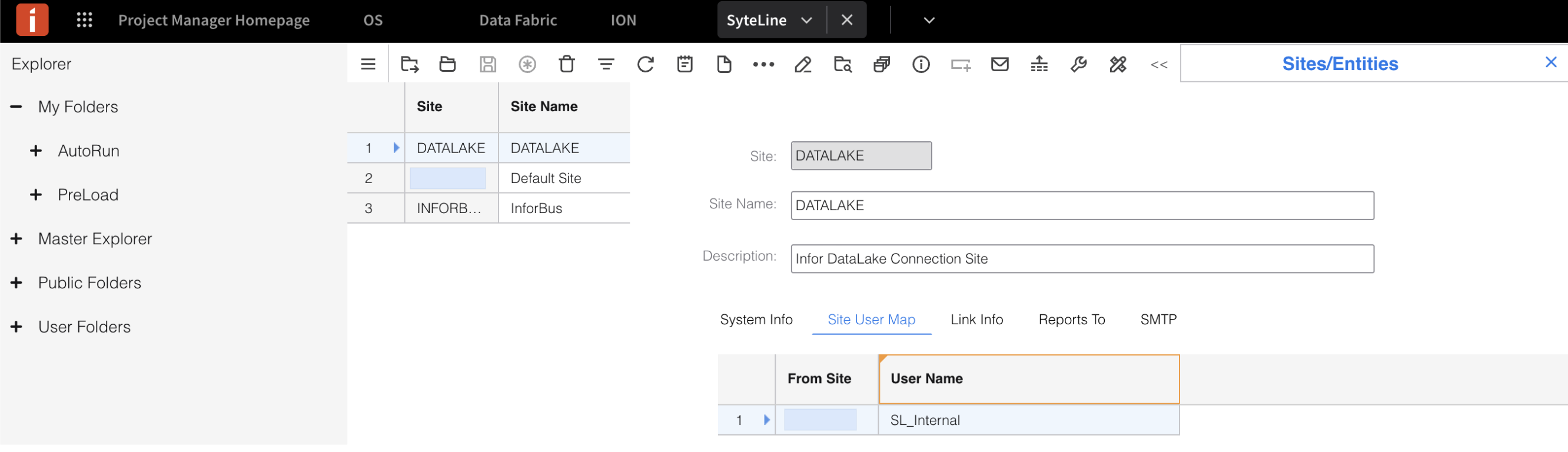
c) Validate Site User Mapping
• Open the Site User Map subtab
• Ensure all actively used sites are listed
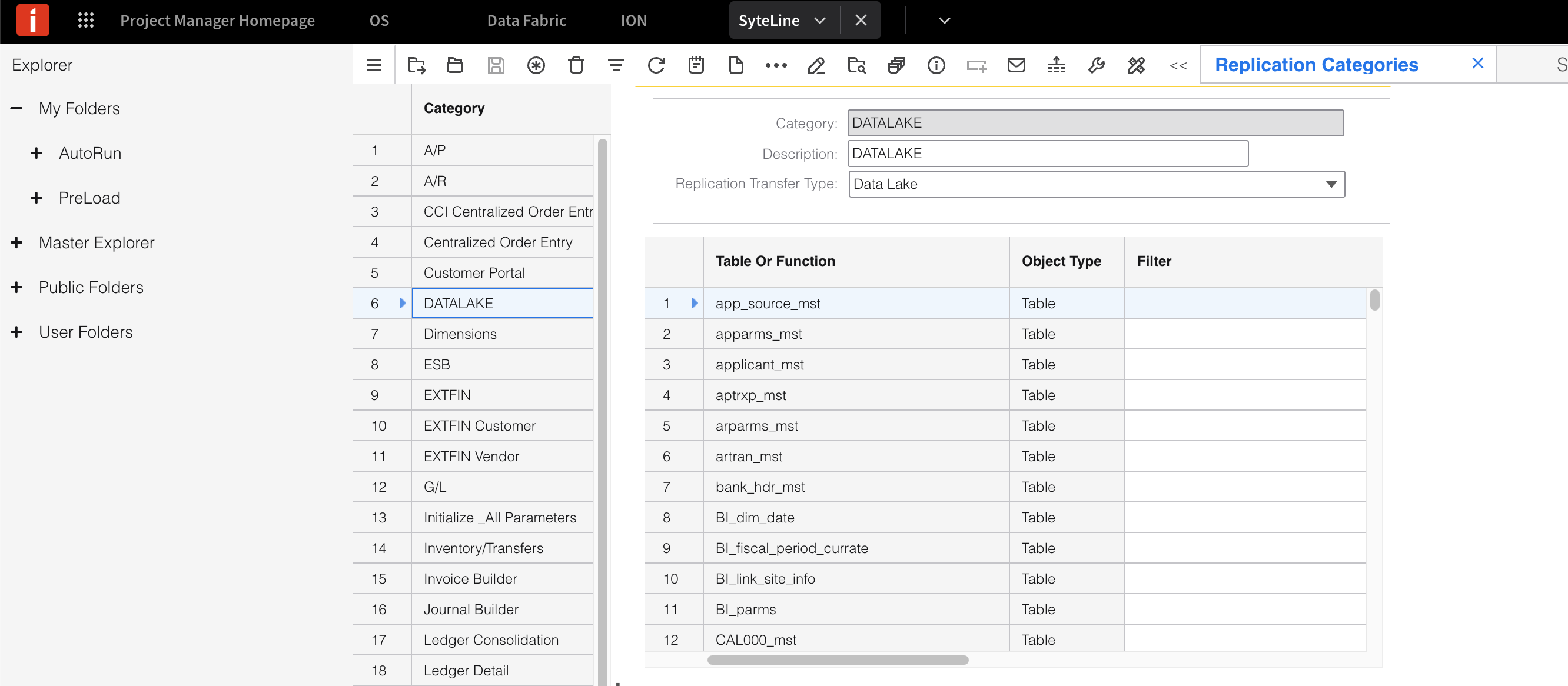
3.2 Configure Replication Categories
d) Define Tables for Replication
• Open the Replication Categories form
• Select the DATALAKE category
This is where you define which tables are replicated to the Data Lake.
• Ensure all required tables (listed in Section 1) are included
• If any are missing, add them manually
3.3 Configure Replication Rules
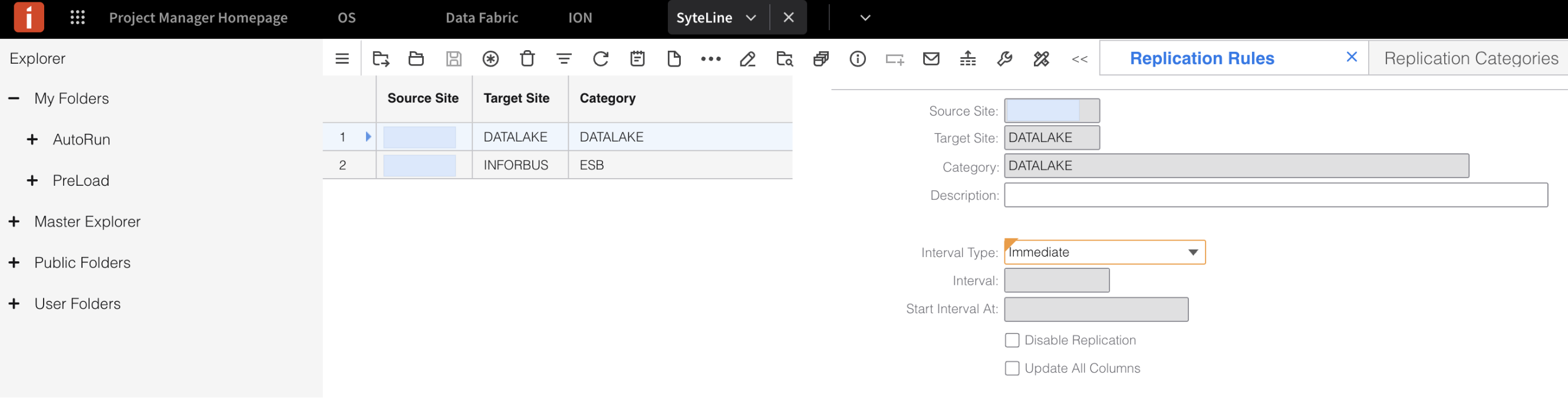
e) Validate Replication Rules
• Open the Replication Rules form
• Confirm the following:
• All active CSI sites are listed as Source Sites
• Target Site is set to DATALAKE
• Interval Type is set to Immediate
• Disable Replication is unchecked
3.4 Initialize Data Lake Schema
f) Generate Data Lake Schema
• Open the Generate Data Lake Schema form
• Select the DATALAKE site
• Click Generate Schema

3.5 Enable Replication
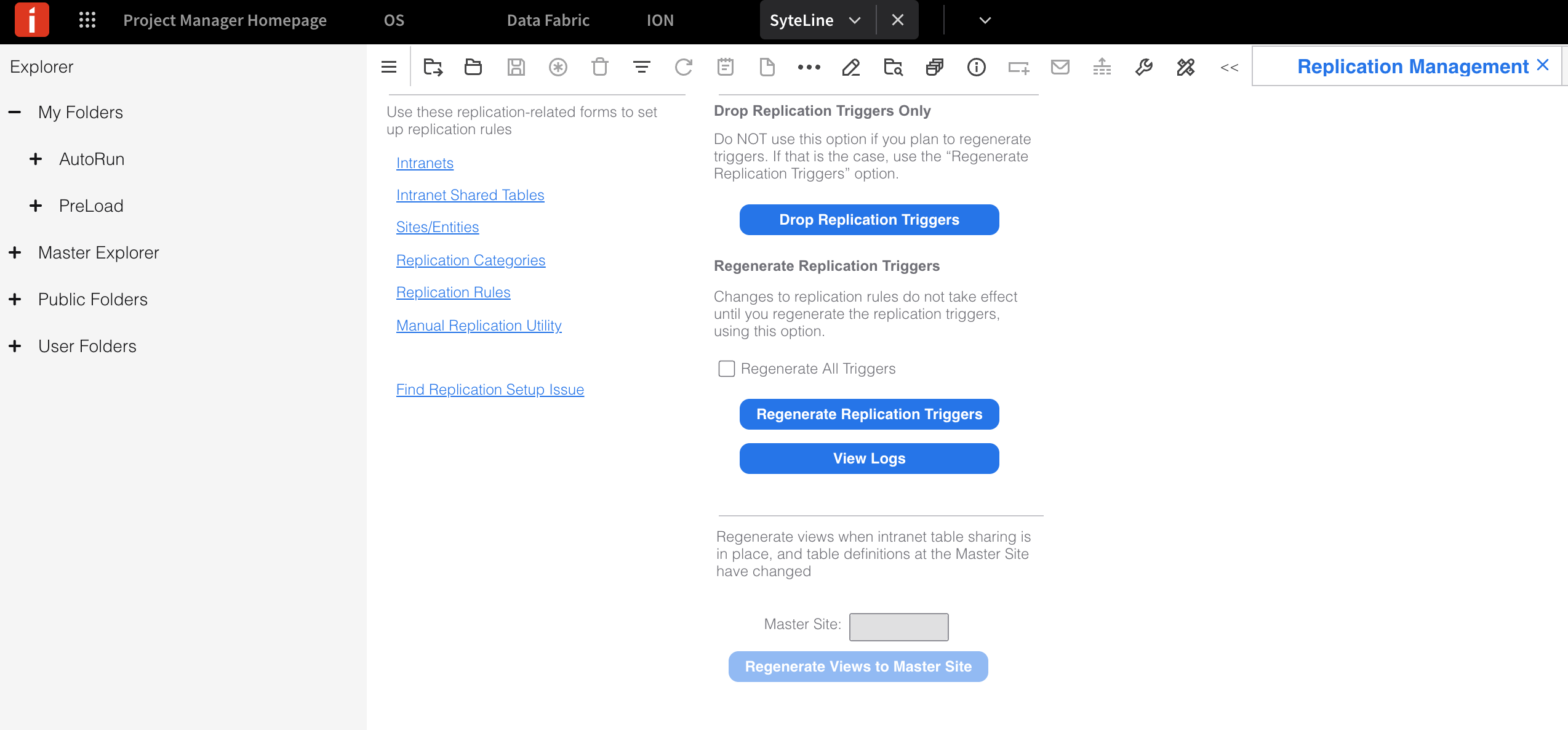
g) Regenerate Replication Triggers
• Open the Replication Management form
• Click Regenerate Replication Triggers
3.6 Perform Initial Data Load
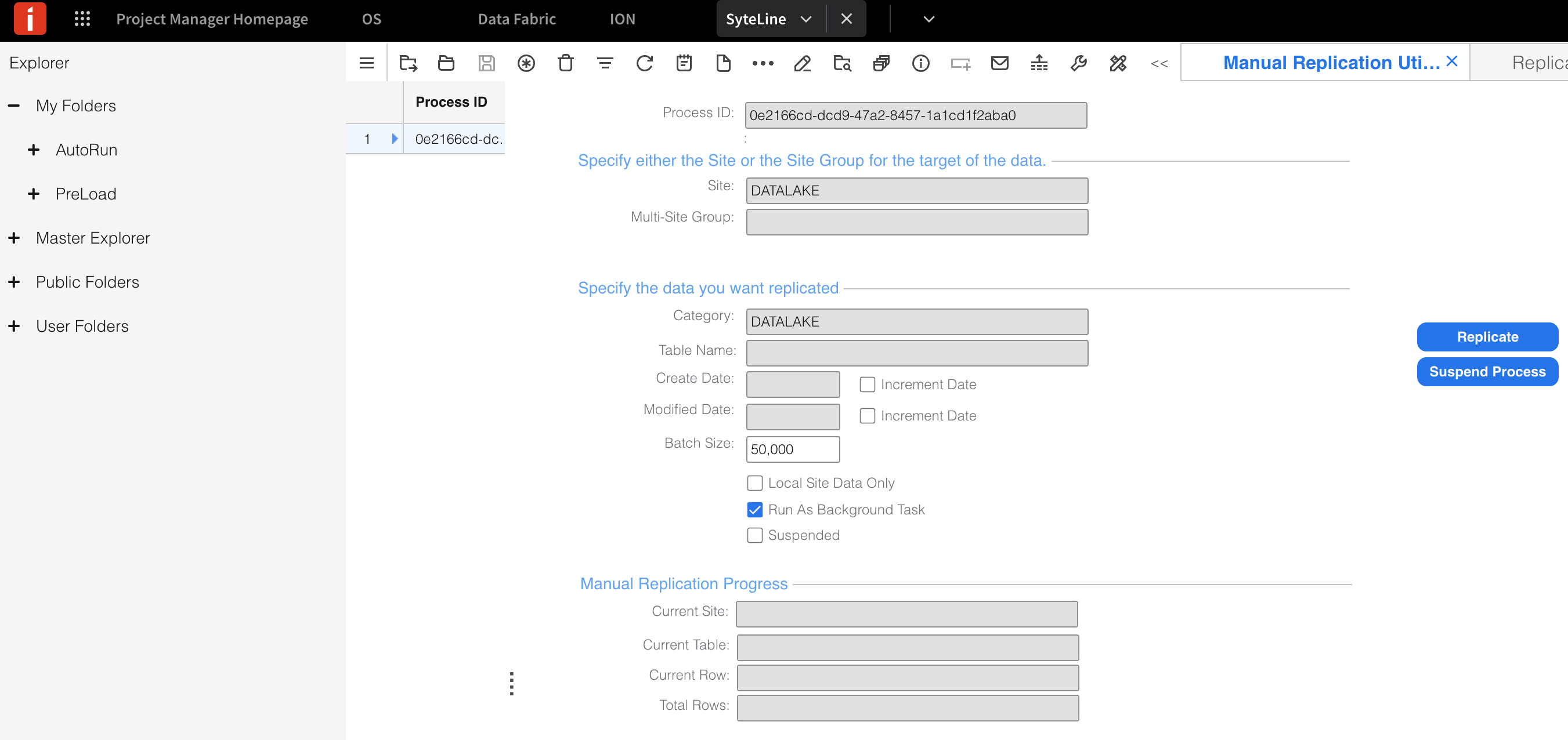
h) Run Manual Replication
Open the Manual Replication Utility and configure:
• Site: DATALAKE
• Multi-Set Group: (leave blank)
• Category: DATALAKE
• Table Name: (leave blank to replicate all tables)
• Local Site Data Only: unchecked
Then:
• Click Save
• Click Replicate
This step performs the initial data push to the Data Lake and may take some time depending on data volume.
3.7 Validate Data Flow
i) Confirm Data is Flowing
Once replication completes:
• Return to Infor ION → OneView
• Verify that data is now being received for the expected tables
Completion
Once data is actively flowing into the Infor Data Lake, the pre-requisites are complete.
You can now proceed to the AskQ provisioning process.
Was this article helpful?
That’s Great!
Thank you for your feedback
Sorry! We couldn't be helpful
Thank you for your feedback
Feedback sent
We appreciate your effort and will try to fix the article